
Migrating from Google Photos
This guide gives you step-by-step instructions on how to migrate your photos from Google Photos to zeitkapsl. Requesting your Takeout from Google can take a few hours or days, depending on the amount of data you have.
TIP
If you have a large library, we recommend doing this process on a stable Wi-Fi or even better LAN connection, and making sure you have enough free disk space.
In case you face any issues during the migration, please feel free to contact us via support@zeitkapsl.eu.
1. Request your Google Takeout
Go to takeout.google.com and log in with your Google account.
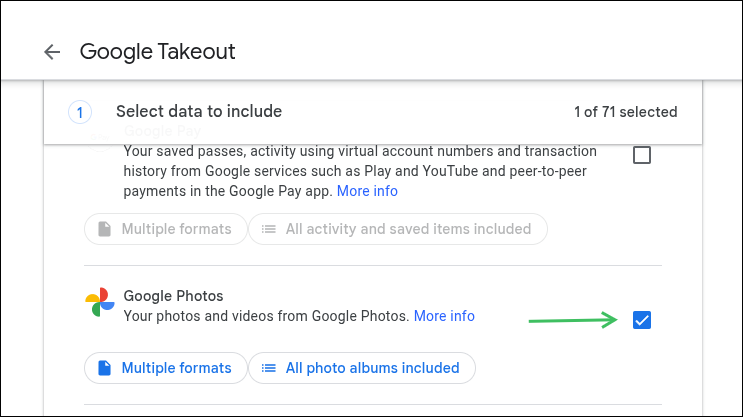
Select Google Photos and click Next.
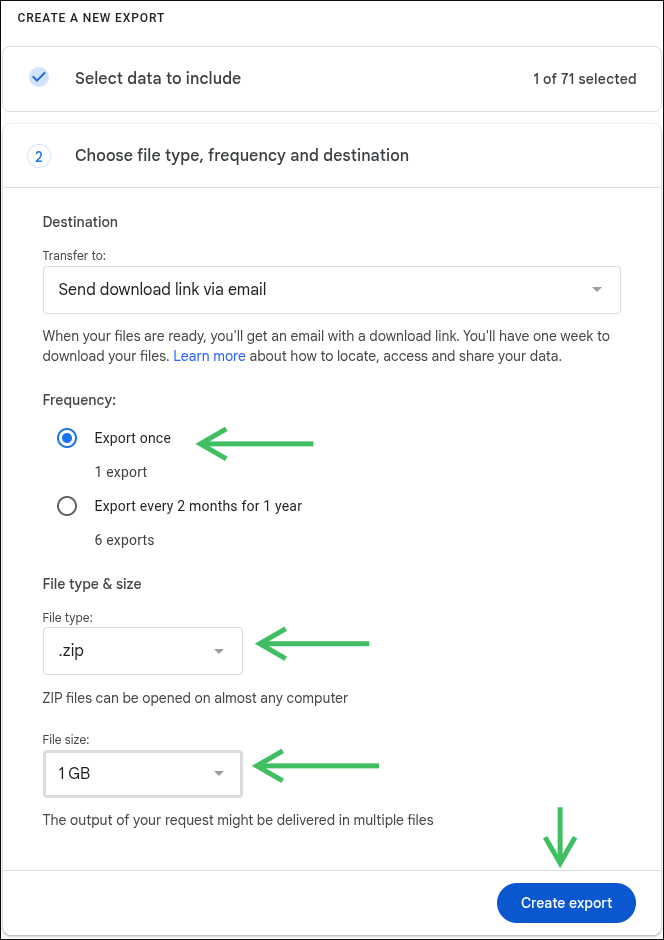
Set File type & size to .zip, File size to 1 GB, and click Next. Smaller files will make the import process smoother.
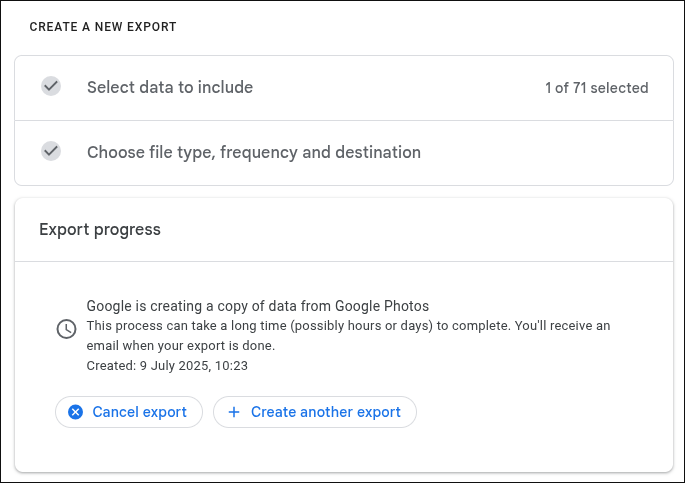
This will then take a few hours or days, depending on the amount of data you have.
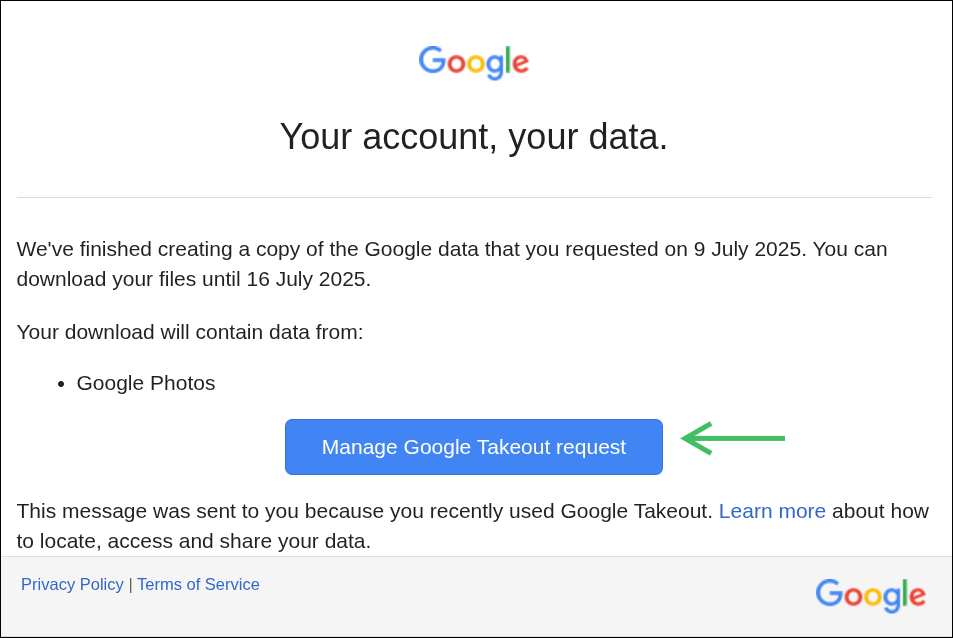
You will get an email with a link to download your data.
Depending on your number of files, you will see a list of downloads. Download all of them.
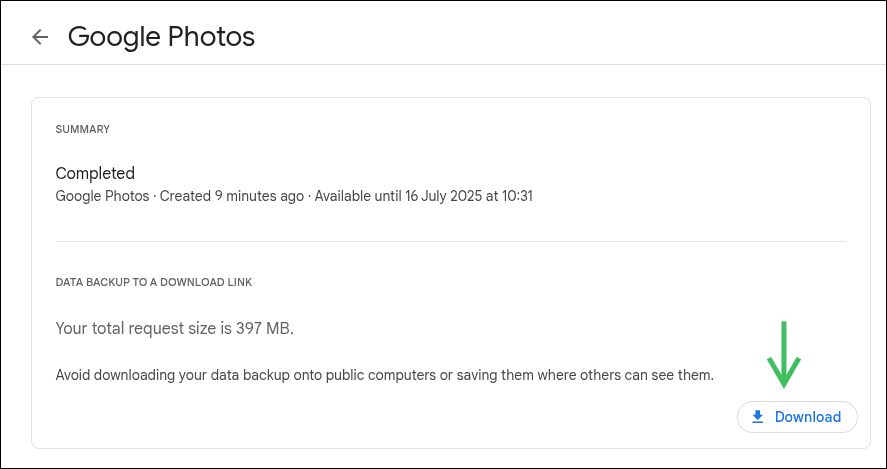
Important: You don't need to extract the ZIP files, just remember the location of the downloaded files. You will need it later.
2. Import into zeitkapsl
Download the zeitkapsl Desktop App.
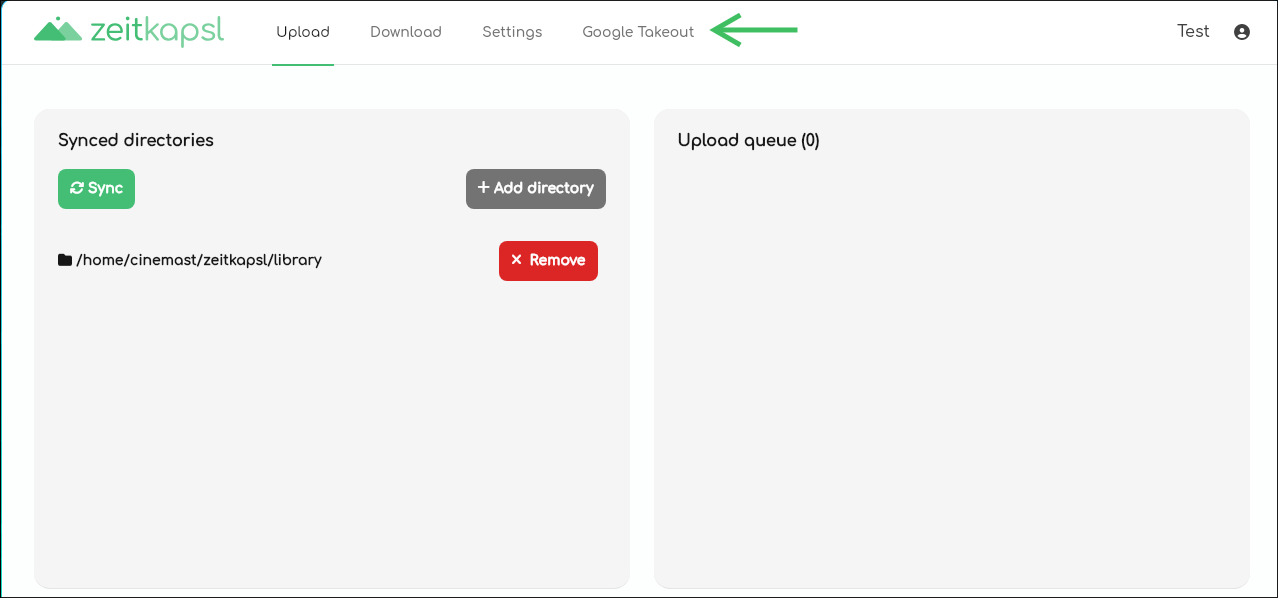
Log in with your credentials and click on the Google Takeout tab at the top.
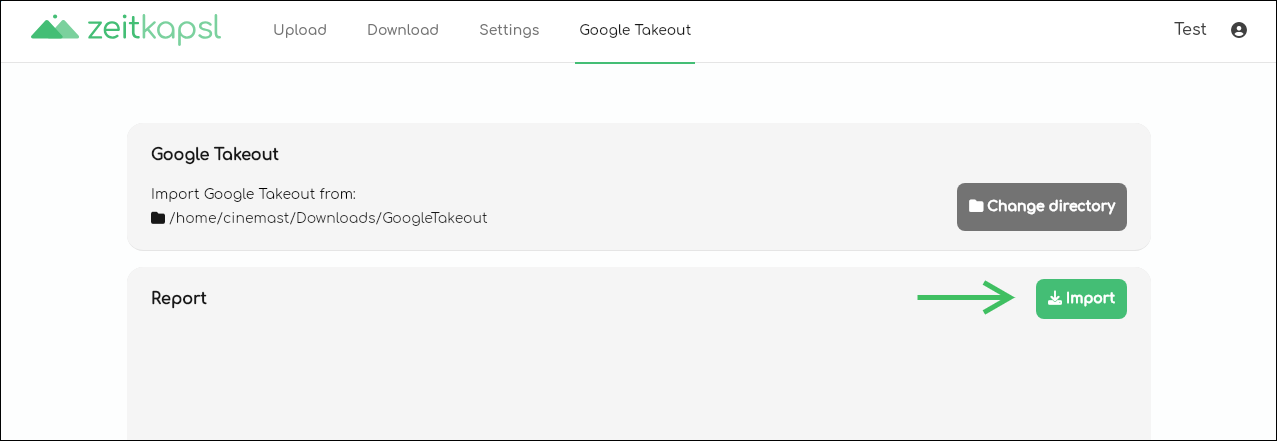
Select the folder where you downloaded the files and click Import. Don't extract the ZIP files, the importer will take care of reading the ZIP files directly.
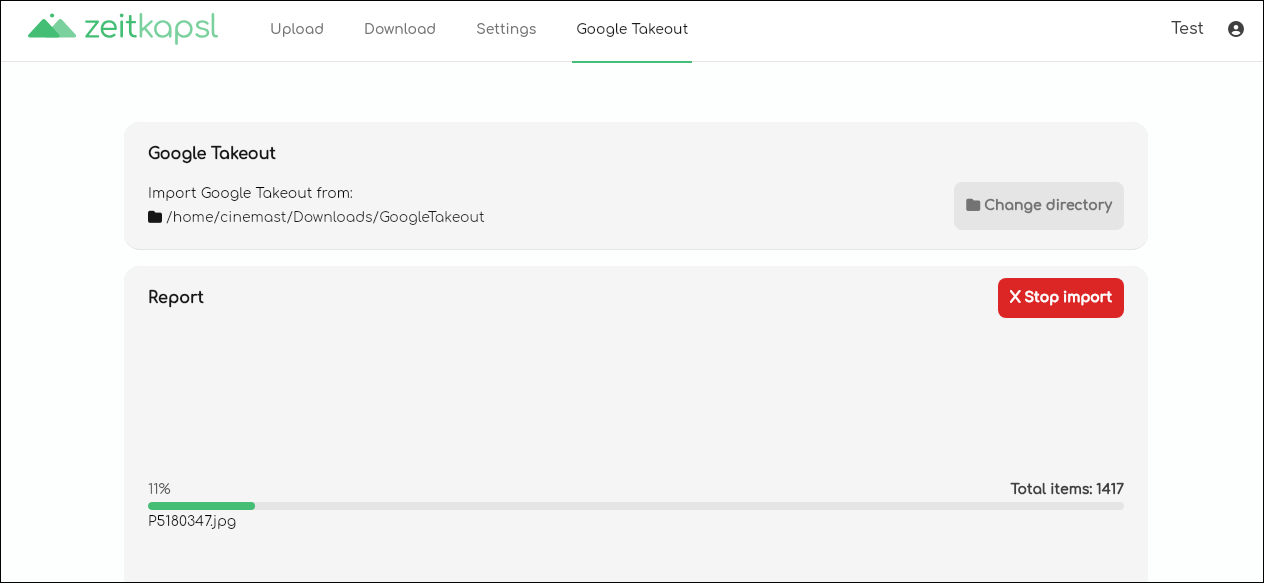
Depending on the size of your Takeout, this might take a while. You can follow which files are currently being imported.
The zeitkapsl importer analyzes your Takeout and recovers location (GPS) info, timestamps, albums / collections, and even liked items. It also deduplicates your photos and videos if they appear in multiple folders. If a photo or video appears in multiple collections, it will only consume storage once in your account.
All of this happens directly from the ZIP files, so you don't need additional disk space.
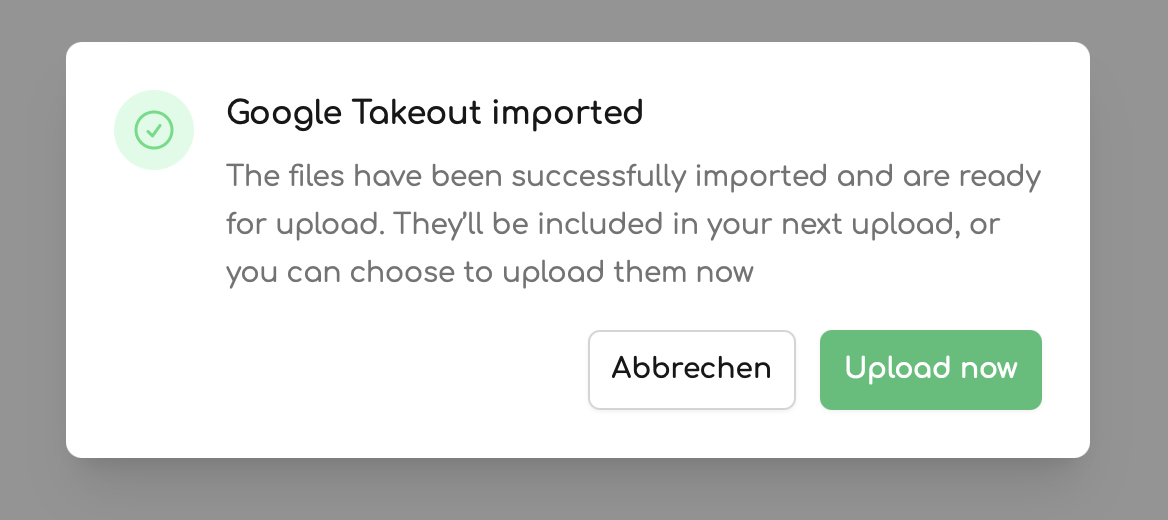
Once the files are imported, it is time to actually upload and sync them to your zeitkapsl account, so you can access them from anywhere.
Your photos never leave your device unencrypted. All metadata extraction and processing happens on your device.
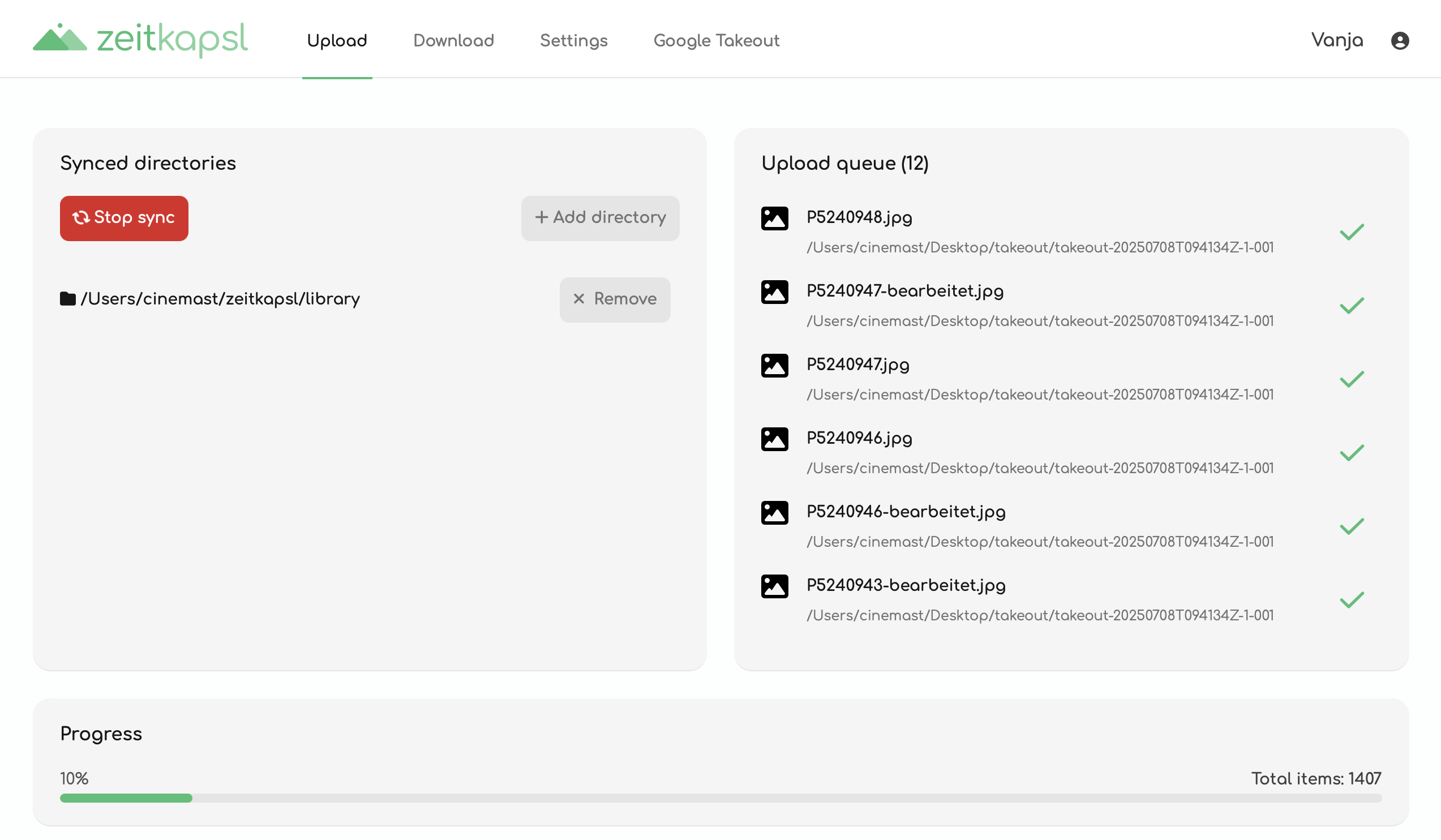
Depending on your internet connection and Takeout size, this might actually take a few hours. You can follow which files are currently being uploaded and processed.
Done
Your memories are now safe in zeitkapsl, private, secure, and fully under your control. We never see your photos. The import and upload process is fully end-to-end encrypted.
FAQ
Do I have to unzip the Takeout files? No. zeitkapsl reads your photos directly from the ZIP files. This also ensures no additional disk space is required.
What if I have multiple ZIP files? Just point the app to the folder where all your Takeout ZIPs are stored. The importer handles everything for you.
Can I delete the ZIPs after import? Yes, once the import and upload are complete, you may delete them to save disk space.
What exactly is being migrated? zeitkapsl restores your photos and videos from the Google Takeout ZIP files, along with metadata such as location, date, and time. If photos are organized into folders, zeitkapsl creates the same folder structure in your account, except for generic folders like Photos from 2024, which are easy to rediscover via search (just type 2024 or December 2024 in the search bar).
Why do I have to download the files from Google Takeout? Can't you directly import from Google Photos? Due to end-to-end encryption, zeitkapsl ensures that your data remains private and secure throughout the entire process. If we imported directly from Google Photos, we would have to store your data on our servers unencrypted, which would compromise your privacy.